


PDF export is an integral part of today’s web development. No matter what type of application you are developing, it is evident that sooner or later you will be required to support PDF exports. If you are working on a reporting application, then PDF export enforces a challenge of exporting custom PDFs which should have charts along with some custom information. It can include:
- Tabular summary of the chart
- Description of the chart
- Some domain-specific information in context of the chart
Although most of the charting libraries provide a direct way to export charts into PDF, the challenge arises when we are required to support custom info along with charts.
In this guide I will walk through how to build a custom PDF generation flow that seamlessly integrates Highcharts Visualizations with Tailwind CSS styling. The approach involves extracting charts as SVGs, embedding the required styles into a standalone HTML document, and using Puppeteer on the backend to render that HTML into a PDF.
The stack
To follow along, I am using these stacks:
| Frontend | React 19.x , Vite 8.x , TailwindCSS 4.x |
| Charting | Highcharts 12.x, @highcharts/react 4.x |
| Backend | Express 5.x, Puppeteer 24.x |
| Language | Typescript 5.x |
Prerequisites
I am assuming you already have a working React application with TailwindCSS and Highcharts library configured, and a working backend application in Node.js and Express.js configured.
To keep this guide focused on the “how-to” of PDF logic, I will not be covering the initial setup. If you are starting from scratch, these links will be helpful for you to do the initial setup.
The approach (High level overview)
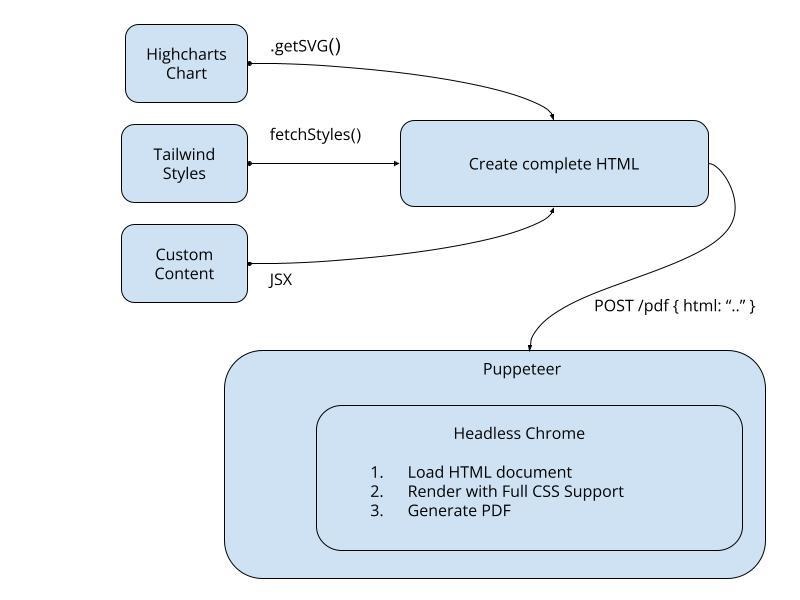
Key steps
- Extract Chart as SVG: Highcharts library provides built-in getSVG() method to extract the chart as an SVG string.
- Gather Tailwind Styles: We need inline styles as Puppeteer renders an isolated HTML. We extract the Tailwind styles and embed it inside the <style> tag.
- Build HTML Document: Build a React component using native html tags by combining the SVG and other react components.
- Render with Puppeteer: Send the HTML as a string to the backend, where Puppeteer’s headless chrome renders and generates the pixel-perfect PDF
Simple in principle. Let me walk through each step.
Step 1: Extract chart as SVG
Highcharts provides a built-in getSVG method to extract the chart as a SVG string.
To enable this, you first need to import the exporting module provided by Highcharts.
TypeScript
import Highcharts from 'highcharts';
import { setHighcharts } from '@highcharts/react';

import 'highcharts/modules/exporting';

setHighcharts(Highcharts);
Create a type definition to access this getSVG method
TypeScript
import type Highcharts from 'highcharts';

export interface ChartWithExporting extends Highcharts.Chart {
       getSVG(options?: Highcharts.Options): string;
}
Use ref to access the chart instance rendered using highcharts
TypeScript
import { useRef } from 'react';
import { Chart, Series, Title, type HighchartsReactRefObject } from
'@highcharts/react';
import type { ChartWithExporting } from '../type';

function ChartPage() {
       const ref = useRef<HighchartsReactRefObject | null>(null);

       const handleExport = () => {
             const chart = ref.current?.chart as ChartWithExporting;
             const svg = chart.getSVG(); // Returns SVG string
       };

       return (
              <Chart ref={ref}>
                  <Title> Monthly Sales</Title>
                  <Series type="line" data={[100, 200, 150, 300, 250]} />
              </Chart>
       );
}
While it is not necessary to use the getSVG method to extract the SVG. You can also use the document object to extract the rendered SVG. The main advantage of using getSVG method is that it provides a way to customize the SVG based on our own requirements.
For example, you can adjust the SVG width to fit a specific PDF orientation.
TypeScript
if (orientation === 'landscape') {
const svg = chart.getSVG({chart: {width: 900}})
} else {
const svg = chart.getSVG({chart: {width: 700}})
}
Step 2: Fetch tailwind styles
Puppeteer renders the HTML in isolation, which means it does not include your app’s style by default. Therefore, you need to ensure that the constructed HTML includes a style tag with necessary styles to construct the pixel-perfect pdf.
Styles are constructed differently in development and production modes.
Production mode
For production mode, styles are constructed using the CSS file.
TypeScript
const CSS_FILE_PATH = '/assets/pdf-export-demo.css';

// Production: fetch the built CSS file
async function fetchFromFile(): Promise<string> {
const response = await fetch(CSS_FILE_PATH);
if (!response.ok) {
throw new Error('Failed to fetch styles');
}
return response.text();
}
You will also have to change the build configuration in the vite.config.ts file.
TypeScript
export default defineConfig ({
   plugins: [
             tailwindcss(),
             react(),
             babel({ preset: [reactCompilerPreset] })
         ],
build: {rollupOptions: {output: {
           assetFileNames: (assetInfo) => {
                if (assetInfo.names?.[0]?.endsWith('.css')) {
                 return 'assets/pdf-export-demo.css';
                }
                return 'assets/[name][extname]'
         },
          chunkFileNames: 'assets/[name].js',
          entryFileNames: 'assets/[name].js'
    }}}

})
Development mode
For development mode, Vite injects styles dynamically via Javascript.
TypeScript
// Development: extract from document stylesheet
function extractFromDocument(): string {
     const styles: string[] = [];
     for (const sheet of document.styleSheets) {
         try {
             for (const rule of sheet.cssRules) {
                    styles.push(rule.cssText);
                  }
          } catch {
                 throw new Error('Failed to construct styles from style');
          }
      }
      return styles.join('\n');
}
Step 3: Build the HTML template
Now, create a HTML component using the chart SVG and generated styles.
TypeScript
type Props = {
title: string;
chartSVG: string;
content: React.ReactElement;
styles?: string;
}

export function PdfHtml({title, chartSVG, content, styles}: Props) {
       return (
            <html>
            <head>
                  <meta charSet="UTF-8" />
                  <meta name="viewport" content="width=device-width,
            initial-scale=1.0" />
                  <title>{title}</title>
            {styles && <style dangerouslySetInnerHTML={{__html:
            styles}} />}
            </head>
            <body className="bg-gray-50 p-8">
            <div className="max-w-4xl mx-auto">
            <h1 className="text-3xl font-bold text-gray-800
            mb-6">{title}</h1>
               <div
                className="bg-white rounded-xl p-6 m-6"
                dangerouslySetInnerHTML={{__html: chartSVG}}>
               </div>
               <div className="bg-white rounded-xl p-6">
               {content} // custom content to be rendered is passed
               as a component prop
               </div>
             </div>
             </body>
             </html>
      )
}
The key point to remember here is that we are passing chartSVG and styles as string and hence we need to set it using the dangerouslySetInnerHTML.
Step 4: API client
Next, we will create a simple API endpoint using the fetch function to call the backend service. This endpoint function will take the HTML string as input and will return the filepath key in the response.
TypeScript
const API_BASE_URL = 'http://localhost:3000';

type PdfResponse = {
success: boolean;
filename: string;
filepath: string;
}

export async function generatePdf(html: string): Promise<PdfResponse> {
      const response = await fetch(`${API_BASE_URL}/pdf`, {
            method: 'POST',
            headers: {
                  'Content-Type': 'application/json',
            },
            body: JSON.stringify({ html })
      });

      if (!response.ok) {
      throw new Error('Failed to generate PDF')
      }

return response.json();

}
Step 5: PDF generation
Setup the backend Express server with Puppeteer and add an API endpoint to handle the /pdf path. This endpoint will use the Puppeteer library to generate the PDF.
TypeScript

app.post('/pdf', async (req, res) => {
    const { html } = req.body;

    // 1. Launch Chrome
    const browser = await puppeteer.launch(); // This launches the chrome
 instance installed by puppeteer. But you can also use executablePath to use
 your local instance of chrome
    const page = await browser.newPage();

    // 2. Load HTML
    await page.setContent(html, {waitUntil: 'networkidle0'});

    // 3. Generate PDF
    await page.pdf({ path: filepath, format: 'A4', printBackground: true});

    await browser.close();

   res.json({ success: true, filename, filepath });

})
Key points are
- networkidle0 is used to wait until the page is loaded
- printBackground: true is used to include background colors
Conclusion
The approach we discussed is library specific. But you can extend this approach to other charting libraries as well, provided you can figure out how to extract chart SVG.
This method is particularly helpful for bigger projects where multiple frontend applications are maintained by different teams. In such cases, you can build a centralized service to handle PDF export and all other frontend applications can use this service to generate the PDF.
One drawback of this approach is that the request payload can become quite large due to the inclusion of generated styles. However, this can be mitigated by generating the styles on the server in production mode.
Source Code
The completed working demo is available on Github: https://github.com/pranitkhadilkar7/pdf-export-demo
Please use the README.md to understand the setup.